If you’ve ever wished to be more productive on Windows 11, then Microsoft PowerToys is exactly what you’re looking for. It is hands down the Best Free Productivity Tool Suite For Windows 11 . It has powerful built-in tools for productivity, customization, and workflow automation, that will ease your day to day tasks, and help anyone work faster and smarter on Windows 11. In this post, we will see Microsoft PowerToys features and how to use them.
Table of Contents
What is Microsoft PowerToys?
Microsoft PowerToys is a free set of utilities developed by Microsoft that enhances the Windows experience with advanced productivity features. Instead of installing multiple third-party applications for tasks like window management, batch file renaming, color picking, keyboard remapping, and text extraction, PowerToys brings all these tools together in a single package.
Whether you’re a student, office worker, content creator, IT professional, or developer, PowerToys can save time by automating repetitive tasks and improving your workflow.

Key Benefits of Microsoft PowerToys
- Improve productivity with powerful shortcuts
- Organize windows more efficiently
- Rename multiple files instantly
- Extract text from images and screenshots
- Customize keyboard shortcuts
- Preview additional file types in File Explorer
- Search and launch apps faster
- Access advanced utilities without installing multiple apps
How to Install Microsoft PowerToys in Windows 11
Installing Microsoft PowerToys on Windows 11 is a straightforward process. You can get Microsoft PowerToys from Microsoft Store, GitHub or Winget. For most users the easiest way to install Microsoft PowerToys would be from Microsoft Store.
Method 1: Install from Microsoft Store
- Open Microsoft Store.
- Search for “Microsoft PowerToys.”
- Click Install.
- Wait for the installation to complete.
- Launch PowerToys.
Method 2: Install from GitHub
- Visit the official PowerToys GitHub release page.
- Download the latest installer (.exe).
- Run the installer.
- Follow the installation wizard.
- Launch PowerToys when installation is complete.
Method 3: Install Using Winget
Open Windows Terminal and run: winget install Microsoft.PowerToys
Accessing Microsoft PowerToys After Installation
After installation, you can start Microsoft PowerToys just like you would start any other programs.
- Open the Start Menu.
- Search for “PowerToys.”
- Launch the application.
You can also:
- Enable “Run at startup” so PowerToys loads automatically.
- Access PowerToys from the system tray.
- Configure individual modules from the PowerToys Settings window.
Microsoft PowerToys Features
Microsoft PowerToys includes several utilities, such as Advanced Paste, PowerRename, Image Resizer, Color Picker, Screen Ruler, Host File Editor, Keyboard Manager etc. PowerToys regularly receives updates and new features.
The left sidebar in Microsoft PowerToys displays all available utilities and their settings. You can review the Microsoft PowerToys features and explore the features before you decide to enable which essential features to use as per your requirement. Most Microsoft PowerToys feature has shortcuts for you to easily activate the feature to use.
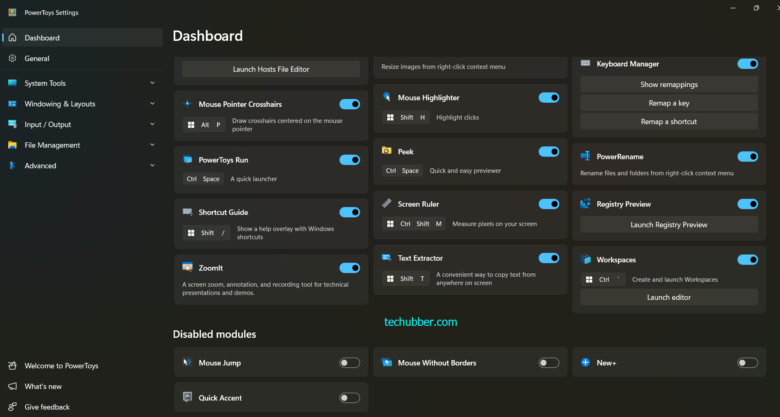
These utilities offer users a diverse array of options for customization and efficiency. By leveraging PowerToys, users can transform their standard Windows operating system into a platform finely tuned to their individual work styles, thus unlocking a level of productivity that was previously more challenging to achieve.
Below are the most useful tools currently available.
1. Advanced Paste (my personal favorite!)
Microsoft PowerToys Advanced Paste enhances the Windows clipboard by allowing you to paste content in different formats. It is a tool to quickly format clipboard content into plain text, Markdown, JSON, and more. An Al-powered option requiring an OpenAl API key is available for advanced formatting.
How to Use Microsoft PowerToys Advanced Paste
- Copy ANYTHING to the clipboard.
- Press the Advanced Paste shortcut (CTRL + SHIFT + V)
- Select the desired output format.
- Paste the converted content.
What you can do with Advanced Paste: Useful for formatting text, removing formatting, and AI-assisted transformations – Paste as plain text directly, Paste as Markdown directly, Paste as JSON directly, Image to text, Paste as file, Paste as .txt file, Paste as .png file, Paste as .html file, Transcode audio / video, Transcode to .mp3
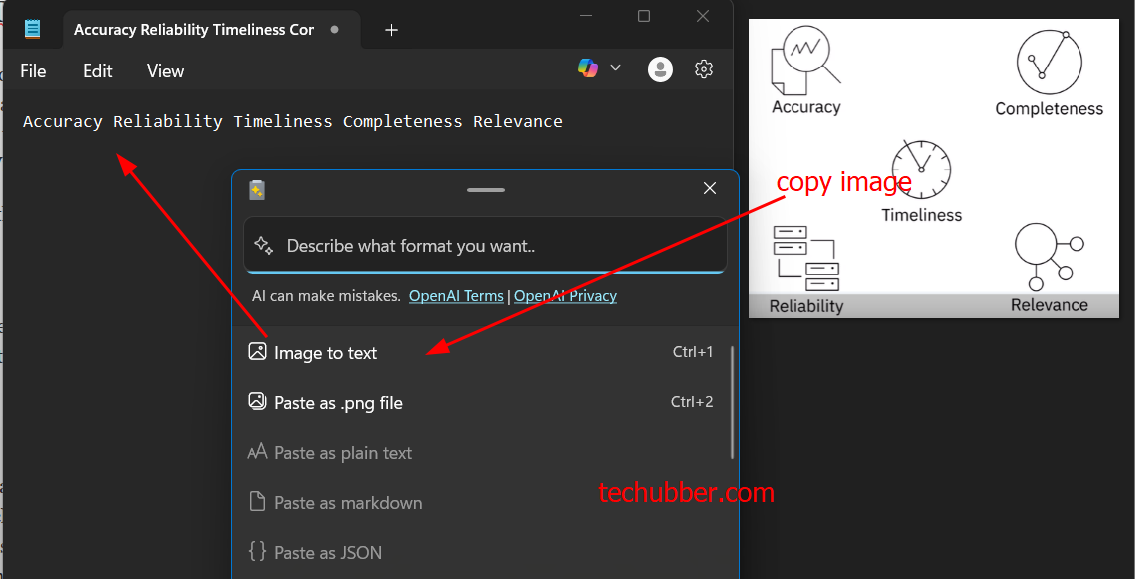
Looking for image to text conversion? Microsoft PowerToys Advanced Paste can convert images copied to clipboard to text for you in an instant. You do not need another image to text converter software! You can simply copy the image with text or take a snapshot of the image using print screen or screenshot app, and press the Advance Paste Shortcut, and select Image to Text.
Learn more: How to Extract Text from Image (Image to Text) Using Microsoft PowerToys Advanced Paste
2. Text Extractor
Microsoft PowerToys Text Extractor is a convenient way to copy text from anywhere on screen. Using this you can copy text from system screens, images, screenshots, videos, and PDFs – literally anywhere visible on screen.
How to Use Microsoft PowerToys Text Extractor
- Press: Windows + Shift + T
- Select the area containing text
- The extracted text is copied automatically.
- You can paste it wherever you need to use it.
This is one of the most useful features in PowerToys which lets you extract text from anywhere visible on screen. You do not need additional OCR software.
3. Always On Top
Microsoft PowerToys Always On Top as the name suggests is a quick and easy way to keep selected window above all other windows.
How to Use Microsoft PowerToys Always On Top
- Open the application you want to pin.
- Press Windows + Ctrl + T
- The window remains on top.
- Press the shortcut again to disable it.
Perfect for calculators, notes, video calls, and reference documents.
3. Awake
Microsoft PowerToys Awake prevents your PC from sleeping without changing Windows power settings.
How to Use Microsoft PowerToys Awake
- Open PowerToys > Select Awake.
- Enable Awake.
- Choose how long the PC should remain awake.
Ideal for downloads, presentations, and long-running tasks.
4. Color Picker
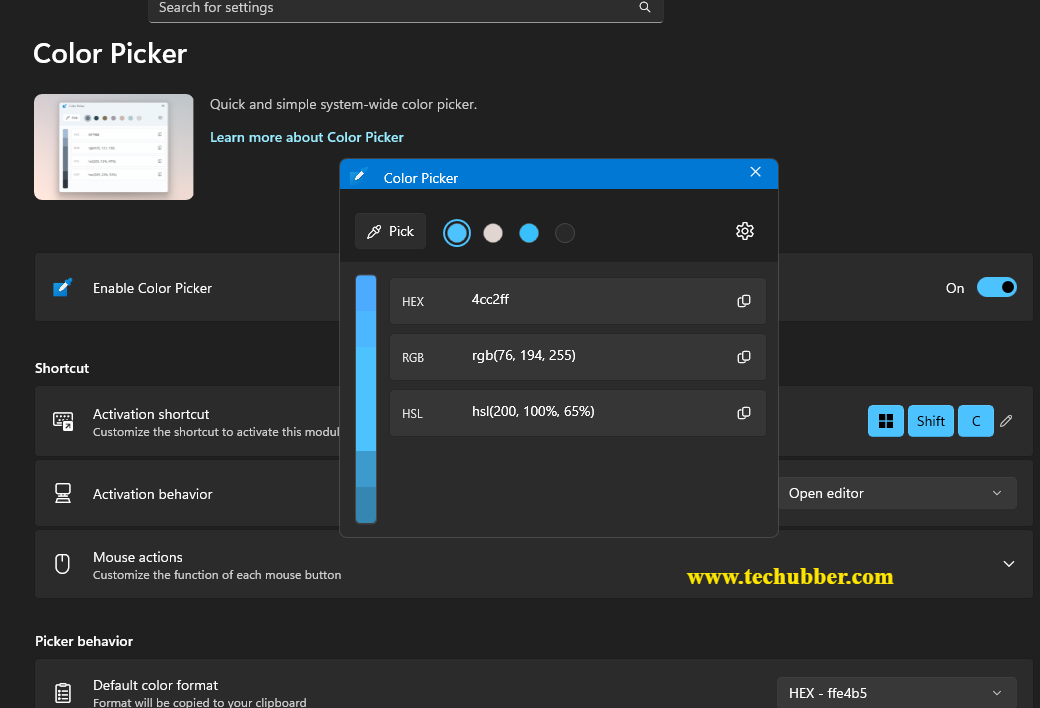
Microsoft PowerToys Color Picker is a quick and easy system wide color picker. It identifies color values anywhere on your screen, including system windows. You do not need additional software to identify the color code.
How to Use Microsoft PowerToys Color Picker:
- Press Windows + Shift + C
- Click any color.
- Copy the HEX, RGB, or HSL value.
Useful for web designers and graphic artists.
5. Image Resizer
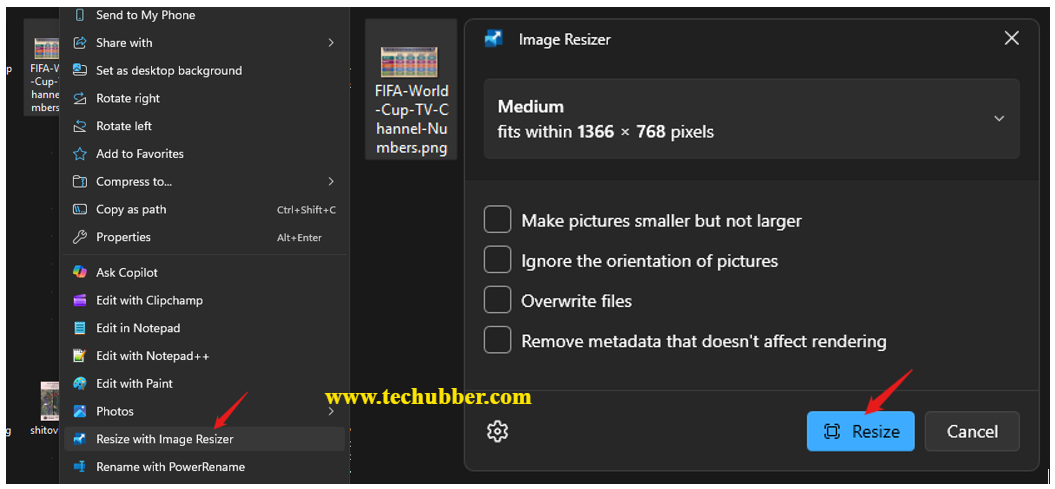
Microsoft PowerToys Image Resizer resizes images directly from the File Explorer. This is also a very useful feature for those who frequently work with images. You an directly select the image(s), right click, and select ‘Resize with Image Resizer’ from the file context menu.
How to Use Microsoft PowerToys Image Resizer
- Select the desired size.
- Select one or more images.
- Right-click, ‘Resize with Image Resizer’.
Excellent for quickly preparing images for websites and email.
Note: If you want more image sizes, configure the required sizes in the Microsoft PowerToys Image Resizer settings.
Again, you do not need additional software just to resize your images just like this: Free Software for bulk resize images
6. Keyboard Manager
Microsoft PowerToys Keyboard Manager remaps keys and keyboard shortcuts.
How to Use
- Open Keyboard Manager.
- Select Remap a Key or Shortcut.
- Choose the new mapping.
- Save changes.
Useful for productivity and accessibility.
Practical usage scenario: In case, you have some issues with some keys on your keyboard, you can use Keyboard Manager to remap those keys with other keys and use it in the meantime before you arrange a keyboard replacement. Again, without Microsoft PowerToys Keyboard Manager, you would need additional software for keyboard key mapping – How to test keyboard keys and fix the faulty key by remapping.
7. PowerRename
Microsoft PowerToys PowerRename renames multiple files using search-and-replace patterns. It is a Windows Shell extension for more advanced bulk renaming using search & replace or regular expressions.
How to Use
- Select files.
- Right-click, Choose PowerRename.
- Define the rename rules.
- Apply changes.
A huge time saver for renaming large file collections by searching and replacing text strings.
8. File Explorer Add-ons
Microsoft PowerToys File Explorer Add-ons adds preview support for additional file formats. You might already be aware that there is a file preview option on the right hand side of the Windows 11 File manager. So this Microsoft PowerToys File Explorer Add-ons enables preview for more file types.
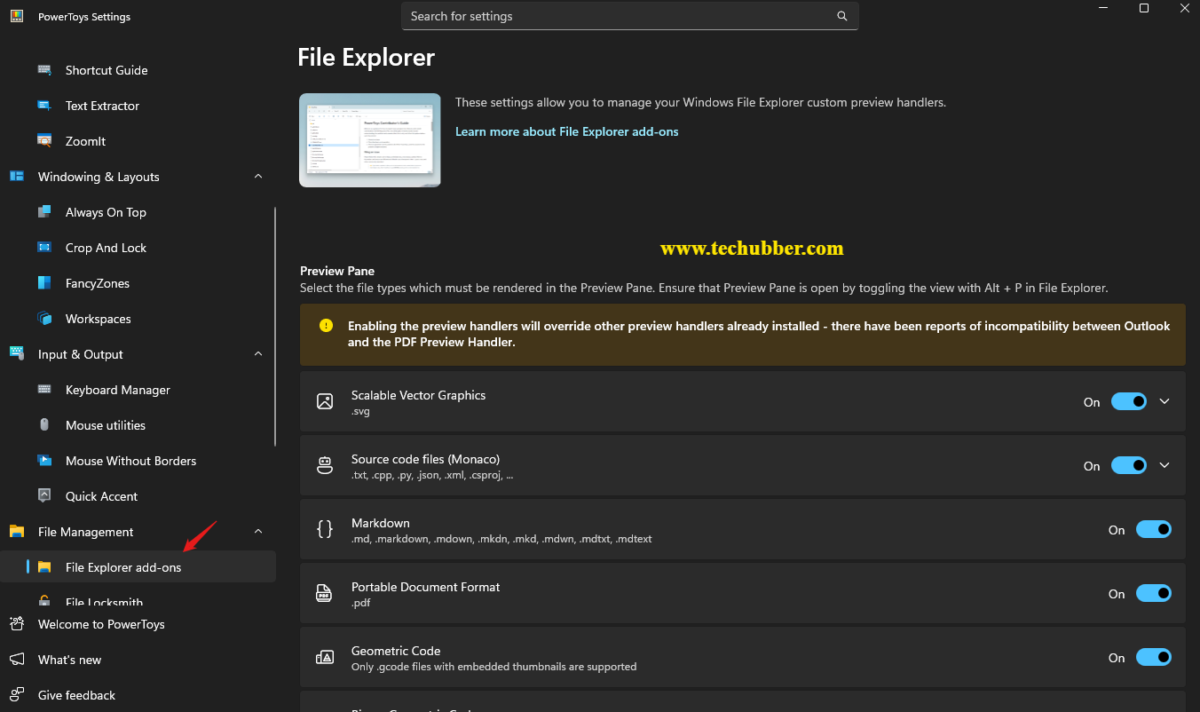
How to Use
- Enable File Explorer Add-ons.
- Open File Explorer.
- Select supported files to preview them.
Useful for developers and content creators.
9. File Locksmith
Microsoft PowerToys File Locksmith shows which processes are using a file.
How to Use
- Right-click a file
- Select “Unlock with File Locksmith”
- Review the list of applications locking the file, and you can end task to release the file.
Microsoft PowerToys File Locksmith is great tool for troubleshooting file access issues.
10. Hosts File Editor
Microsoft PowerToys Hosts File Editor provides a graphical interface for editing the Windows Hosts file (\Windows\System32\drivers\etc\hosts ).
How to Use
- Open Microsoft PowerToys > Hosts File Editor.
- Add or modify entries.
- Save changes.
Useful for developers and network administrators.
The Windows Hosts file is a simple text file that acts as a local directory for your computer, linking domain names (such as example.com) to specific IP addresses. Before Windows queries a DNS server, it checks the Hosts file first, allowing you to override DNS records, redirect websites, block access to specific domains, or test websites on custom servers.
Because the Hosts file is a protected system file, editing it requires administrator privileges. By modifying its entries, you can manually control how your computer resolves domain names, making it a useful tool for developers, network administrators, and advanced users. And by using Microsoft PowerToys Hosts File Editor, it makes your job much easier.
11. Mouse Utilities
Microsoft PowerToys Mouse Utilities adds tools to locate and enhance mouse visibility.
How to Use
- Enable Mouse Utilities.
- Configure desired features.
- Use the assigned shortcuts.
Find My Mouse highlights the position of the cursor when pressing the Ctrl key twice, using a custom shortcut or when shaking the mouse. Mouse Jump quickly move the mouse pointer long distances. You can also change appearance and behavior of the mouse, including mouse pointer crosshair.
12. Mouse Without Borders
Microsoft PowerToys Mouse Without Borders lets you control multiple PCs with one keyboard and mouse. You can control up to four computers from the same machine.
How to Use
- Install PowerToys on all computers.
- Configure Mouse Without Borders.
- Pair the systems.
- Move your cursor between computers seamlessly.
Microsoft PowerToys Mouse Without Borders is ideal for multi-PC workstations, with which you can:
- Control a set of machines using the same keyboard/mouse.
- Share clipboard between the machines.
- Transfer files between the machines.
13. Peek
Microsoft PowerToys Peek provides a quick preview of files without opening them. Select a file in File Explorer and press the shortcut (default key: spacebar) to open the file preview.
How to Use
- Select a file.
- Press the Peek shortcut (default key: spacebar)
- View the file instantly.
Useful for quick preview of documents, images, and code files without opening the file.
14. PowerToys Run
Microsoft PowerToys ‘PowerToys Run’ provides a fast launcher similar to macOS Spotlight.
How to Use
- Press: Alt + Space
- Search for apps, files, folders, commands, and settings.
- Press Enter.
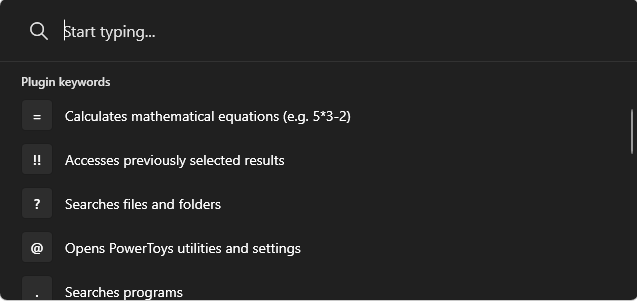
Many users consider this the best PowerToys feature.
15. Quick Accent
Microsoft PowerToys Quick Accent makes typing accented characters (à,ǔ,ü etc.) easier. Quick Accent is an alternative way to type accented characters, useful for when a keyboard doesn’t support that specific accent. It is activated by holding the key for the character you want to add an accent to, then press the activation key (space, left or right arrow keys) and an overlay to select accented characters will appear!
How to Use
- Hold a letter key.
- Press the activation key (space, left or right arrow keys) – a popup toolbar screen appears
- Select the desired accent character by pressing left / right arrow keys
Perfect for multilingual typing and users who often use accented characters.
16. Registry Preview
Microsoft PowerToys Registry Preview is a quick little utility to visualize and edit complex Windows Registry files. It helps you to safely previews registry files before importing them.
How to Use
- Open a .reg file.
- Review changes.
- Import if desired.
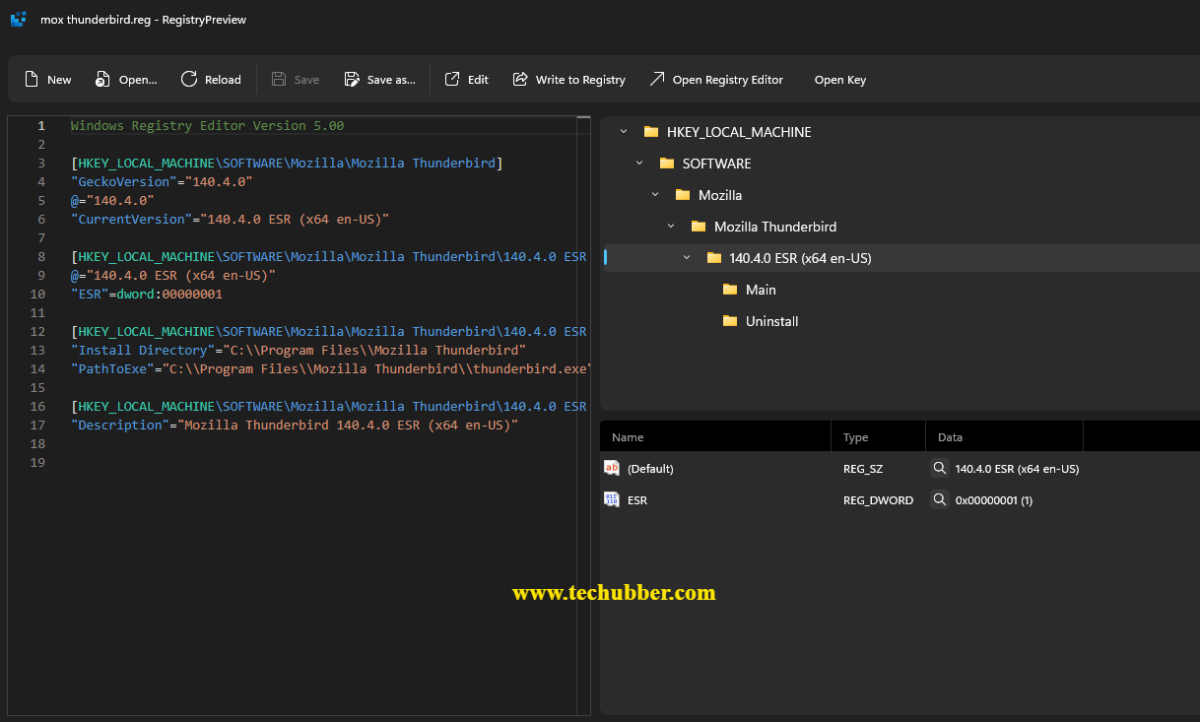
Adds an extra layer of safety for advanced users.
17. Screen Ruler
Microsoft PowerToys Screen Ruler measures distances and dimensions on your screen.
How to Use
- Activate Screen Ruler (Win + CTRL + SHIFT + M)
- Select the measurement mode.
- Measure objects on screen.
Useful for designers and developers. You can also change the measurement unit – pixels, CM, MM, Inch
18. FancyZones
Microsoft PowerToys FancyZones creates custom layouts for arranging windows on your screen for easier multitasking.
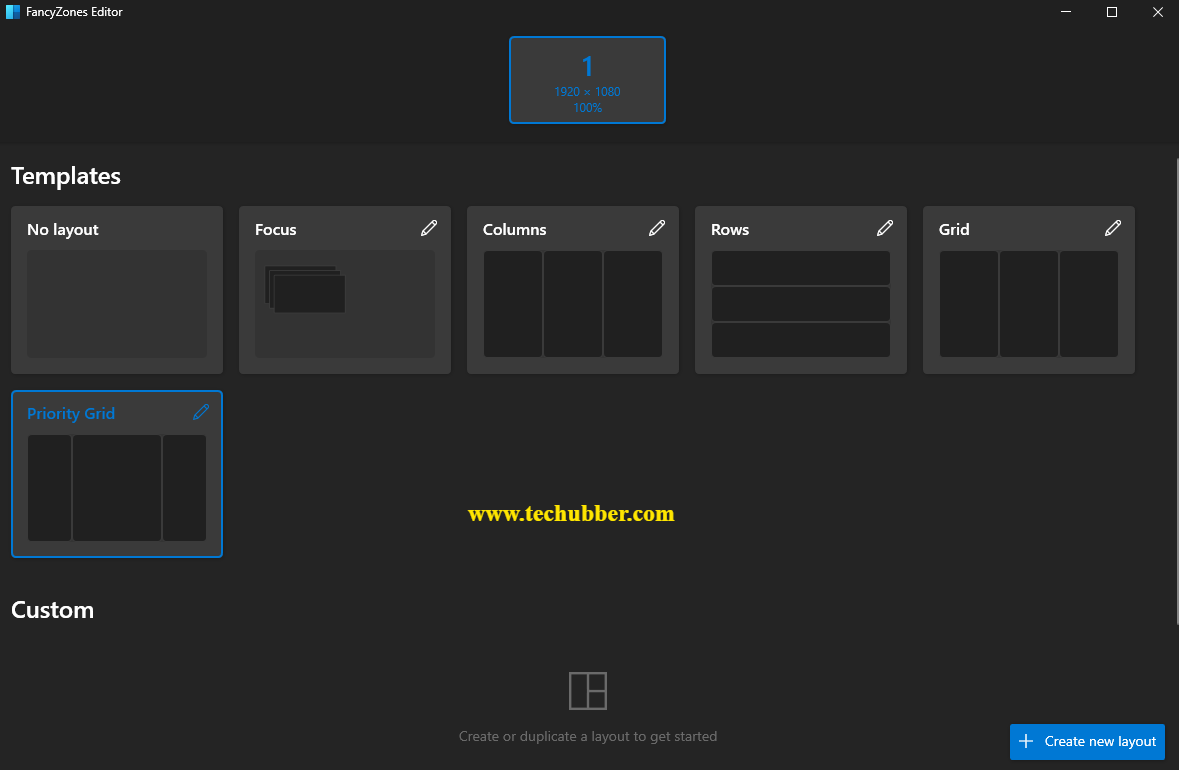
How to Use
- Open Microsoft PowerToys FancyZones Editor.
- Create a custom layout.
- Hold Shift while dragging windows.
- Snap windows into zones.
One of the most popular PowerToys features for multitasking.
19. Workspaces
Microsoft PowerToys PowerToys Workspaces is a desktop manager utility that helps you launch applications to custom positions and configurations with a single click. This Windows desktop management tool gets you into your ideal desktop state for any project or activity faster. You can capture your desktop state as a new workspace using the editor, add arguments to apps to configure their state on launch, and pin the workspace as a desktop shortcut for quick-launching.
How to Use
- Open Microsoft PowerToys Workspaces
- Create a workspace.
- Save your app arrangement.
- Launch the workspace when needed.
Great for repetitive workflows.
Practical usage scenario: Suppose you often work with Google Chrome web browser, VS Code, Notepad, and calculator open. Then you can create a workspace with these apps, opened or minimized. Next time, you can directly start this workspace to quickly launch these apps and get going.
20. Crop And Lock
Microsoft PowerToys Crop And Lock allows you to crop a current application into a smaller window or just create a thumbnail. Just focus the target window and press the shortcut to start cropping.
How to Use
- Open the target application.
- Activate Crop And Lock (Win + CTRL + SHIFT +R)
- Select the area to focus on.
Great for monitoring dashboards and live data.
21. Environment Variables
Microsoft PowerToys Environment Variables provides an easier interface for managing environment variables. An environment variable is a dynamic, user-defined value stored outside of your program code that tells a running process or application how to behave. It consists of a name-value pair (e.g., PORT=8080), acting like a global setting for your computer or server environment.
How to Use
- Open Microsoft PowerToys > Environment Variables
- Select Environment Variables.
- Add, edit, or remove variables.
Useful for developers configuring software tools.
22. ZoomIt
Microsoft PowerToys Zoom is a screen zoom, annotation, and recording tool for technical presentations and demos. You can also use ZoomIt to snip screenshots to the clipboard or to a file.
How to Use
- Launch Microsoft PowerToys > ZoomIt.
- Use the zoom shortcut.
- Annotate presentations in real time.
Microsoft PowerToys Zoom is popular among trainers, presenters, and IT professionals.
Microsoft PowerToys – final thoughts
Microsoft PowerToys is one of the best free productivity tools available for Windows 11. Instead of installing separate applications for window management, file renaming, image resizing, text extraction, and keyboard customization, PowerToys bundles everything into a single lightweight package. Whether you’re a casual user looking to simplify daily tasks or a power user seeking advanced workflow enhancements, Microsoft PowerToys can significantly improve the way you use Windows 11.
As Microsoft PowerToys continues to evolve, users can anticipate a range of intriguing updates and new features that align with modern technological trends and user feedback.
Overall, Microsoft PowerToys offers exciting possibilities that align closely with user demands and emerging technological advancements.

Leave a Comment (FB)