If you’ve recently copied photos from an Android phone or iPhone to your Windows 11 PC, you may notice that some images have the .HEIC file extension instead of the familiar .JPG or .PNG. While HEIC offers several advantages, it can also create compatibility issues, especially on Windows computers.
In this post, we’ll see what HEIC is, why Windows sometimes cannot open it, how to disable HEIC on your phone, and how to batch convert HEIC images to JPG on Windows PC for maximum compatibility.
What is HEIC?
HEIC (High Efficiency Image Container) is an image format based on the HEIF (High Efficiency Image File) standard. It uses advanced compression technology to store high-quality images in significantly smaller file sizes than traditional JPG images.
Many modern smartphones, including iPhones and some Android devices, save photos in HEIC format by default because it helps conserve storage space without noticeably reducing image quality.
Advantages of HEIC
- Much smaller file sizes than JPG
- Better image quality at the same file size
- Supports transparency
- Supports 16-bit color depth
- Can store multiple images in one file (such as Live Photos)
- Can include image edits and metadata without permanently altering the original image
Disadvantages of HEIC
- Limited compatibility with older software
- Many websites only accept JPG or PNG uploads
- Some photo editors cannot open HEIC files
- Windows requires additional codecs before it can display HEIC images
- Sharing photos with others may require converting them to JPG first
HEIC Images Not Opening in Windows?
Windows does not fully support HEIC images by default. When you double-click a HEIC image on Windows 11, the Microsoft Photos app by default would fail to display the image. Instead, you’ll typically receive an error message similar to:
20240210_104847.heic
The HEVC Video Extension is required to display this file. Download and install it now.
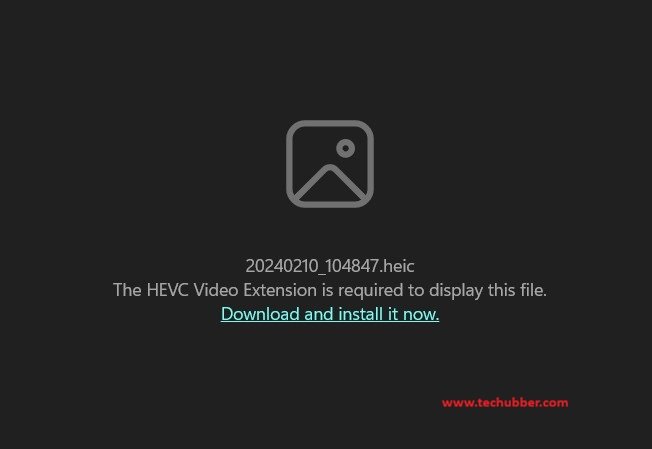
This happens because Windows can recognize the HEIF file format but cannot decode HEIC images that use HEVC (High Efficiency Video Coding) compression unless the required codec is installed.
As a result, Windows may show blank thumbnails, fail to open the image, or continuously prompt you to install the required extension.
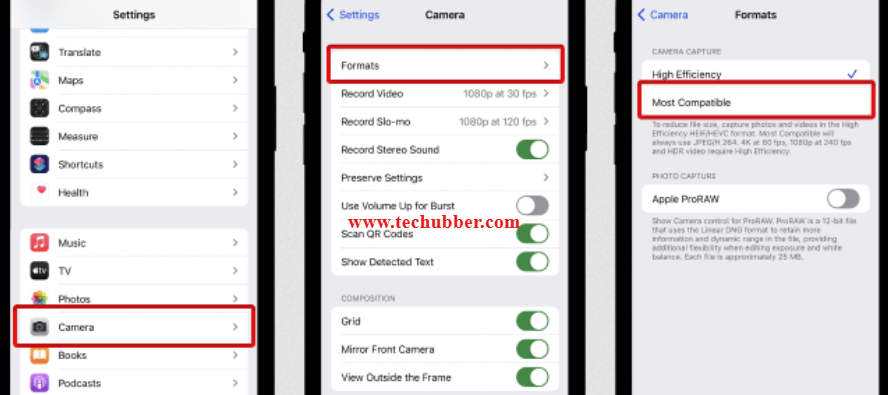
If you frequently transfer photos to a Windows PC, you may prefer saving future photos as JPG instead of HEIC. Although JPG files are larger, they are supported by virtually every computer, website, printer, and photo editing application.
Annoyed with HEIC ? How to Disable HEIC Image Format on Your Phone
If you frequently transfer photos to a Windows PC, you may want to disable HEIC image format on your phone and start saving future photos as JPG instead of HEIC. Although JPG files are larger, they are supported by virtually every computer, website, printer, and photo editing application.
If you are considering to disable HEIC image format on your phone, check out the steps for Android Phone and iPhone in the guides below:
How to Disable HEIC Image Format On Android Phone Camera
How to Disable HEIC Image Format On iPhone
How to View HEIC Images on Windows PC
As we have stated above, Windows PC does not support HEIC files by default. So the Windows Photo app will not display the HEIC images. We are going to discuss how to convert HEIC images to JPG in the following section but before we can convert HEIC to JPG, Windows PC should be able to read HEIC files.
In order to view HEIC images on Windows PC, we need to install the following two extensions.
Table of Contents
1. HEIF Image Extensions (Free)
This extension allows Windows to read and write files that use the High Efficiency Image File (HEIF) format.
Install HEIF Image Extensions from Microsoft App Store
2. HEVC Video Extensions (Paid)
Price: approximately $0.50 (varies by region).
Although HEIC is an image format, it uses HEVC compression. Therefore, Windows also requires the HEVC Video Extensions package to decode and display HEIC images.
Install HEVC Video Extensions from Microsoft App Store
You can search for this extensions and install from the Microsoft App Store. When you are looking for these extensions on Microsoft App Store you may find a lot of apps with similar names but make sure to check the source / developer name – Microsoft Corporation.
Once both extensions are installed, Windows Photos, File Explorer thumbnails, and many third-party applications can properly open HEIC files.
How to Batch Convert HEIC Images to JPG on Windows PC
Now, for the sake of universal compatibility you might want to convert all your HEIC images to JPG. After installing the above HEIF and HEVC extensions, you can view HEIC image on Windows Photo App, and you can also ‘Save As’ or convert HEIC image to JPG. But if you have dozens or even hundreds of HEIC photos, converting them one at a time would be extremely time-consuming. You might want to look for batch conversion methods.
A much faster solution to batch convert HEIC images to JPG on Windows PC is to use IrfanView, which supports batch conversion.
Step 1: Install the Required Microsoft Extensions
Make sure you have installed the required Microsoft extensions below and that you are able to view HEIC images in the default Windows Photo app.
These allow Windows and IrfanView to properly decode HEIC images.
Step 2: Download IrfanView
IrfanView is a lightweight, fast, and free image viewer for Windows that supports a wide range of image formats, including JPG, PNG, GIF, BMP, TIFF, WEBP, and HEIC (with the appropriate plugins installed). Developed by Irfan Skiljan, it has been a popular choice for Windows users for decades due to its speed, simplicity, and extensive feature set. In addition to viewing images, IrfanView includes powerful tools for editing, resizing, cropping, rotating, optimizing, renaming, and converting images.

One of its standout features is Batch Conversion, which allows you to convert hundreds or even thousands of images from one format to another in a single operation.
- Download the latest version of IrfanView from the official website.
- Also download the IrfanView Plugins installer, which adds support for additional image formats including HEIC/HEIF.
- Install both applications.
Step 3: Batch Conversion
- Launch IrfanView.
- Navigate to: File → Batch Conversion/Rename
- At the top of the window, select: Batch Conversion
(If you want to convert as well as rename, you may also select Batch Conversion – Rename result files.) - Add Your HEIC Files: Browse to the folder containing your HEIC images.
- Select the files and click: Add (selected files) / Add All (entire folder)
- Choose JPG Output
- Under Output format, select: JPG/JPEG
- You can also click Options if you’d like to adjust the JPG quality level.
- Select the Output Folder : Choose where the converted JPG files should be saved.
It is usually best to create a new folder so your original HEIC files remain untouched. - Click Start Batch.
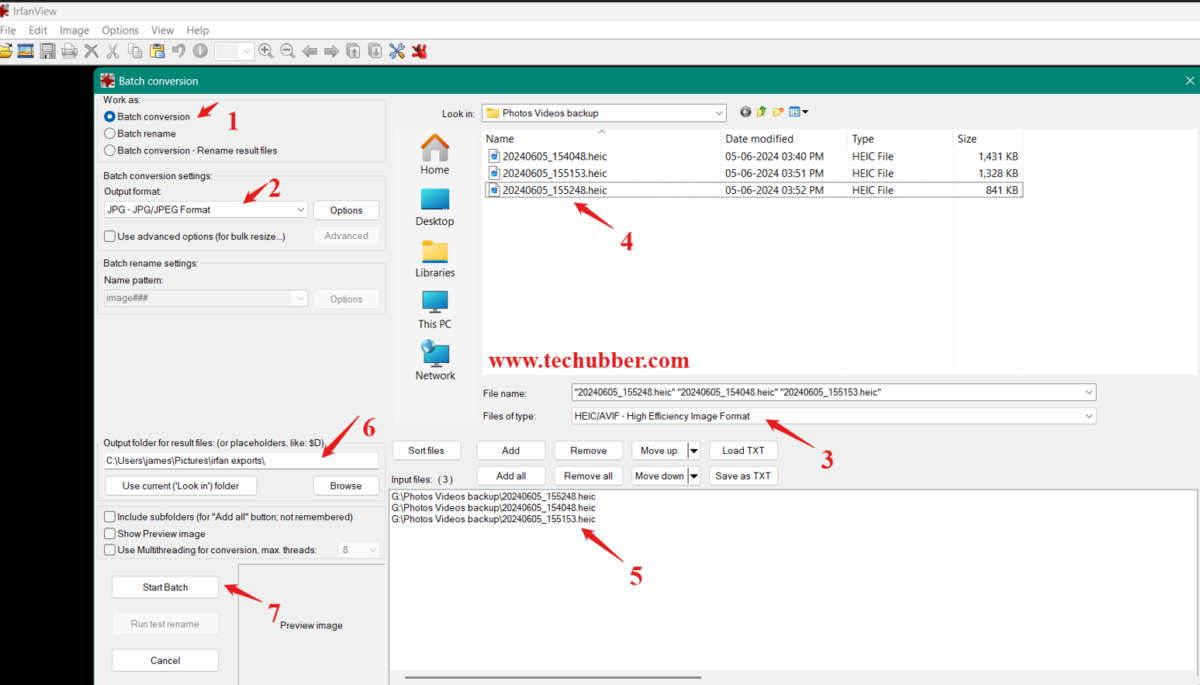
IrfanView will quickly convert every HEIC image into JPG format. Depending on your computer, hundreds of images can usually be converted within just a few minutes.
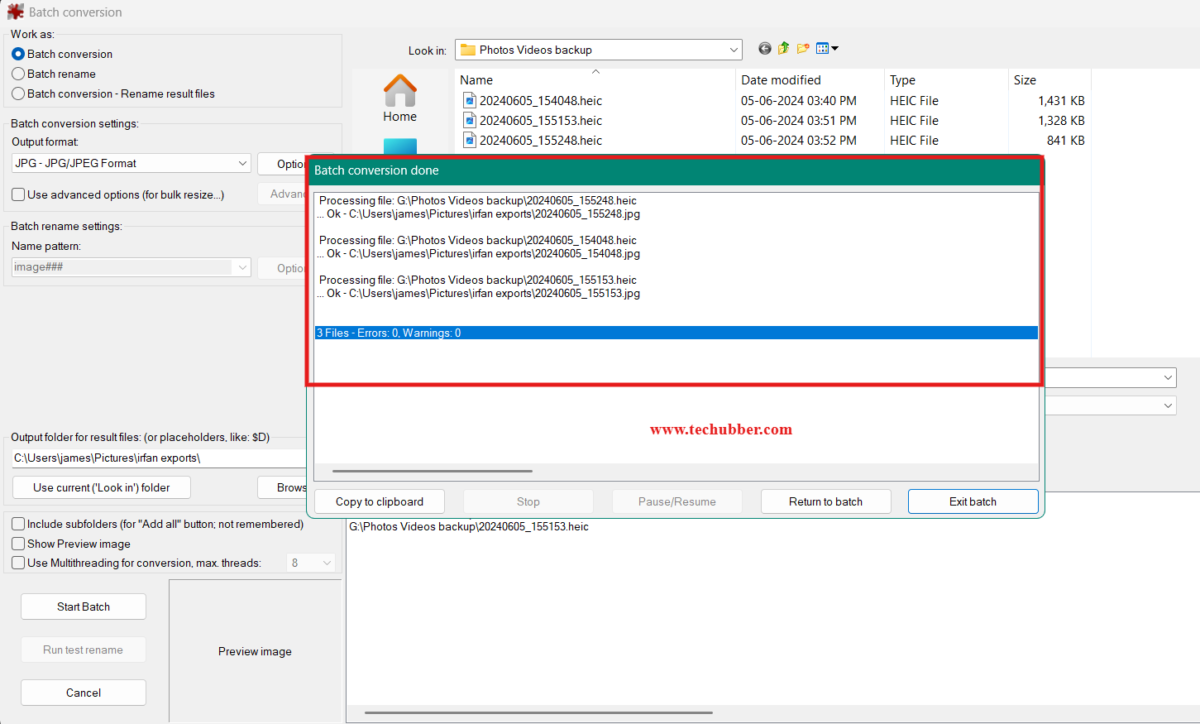
Conclusion
HEIC is an excellent image format that offers higher quality and smaller file sizes than JPG. However, its limited compatibility can make it inconvenient when transferring photos to Windows PCs or sharing images with others.
Installing the HEIF Image Extension and HEVC Video Extensions enables Windows 11 to open HEIC files, while IrfanView provides a fast and reliable way to batch convert them into universally supported JPG images. If you regularly work with photos from modern smartphones, keeping these tools installed will save you time and eliminate compatibility headaches.
If this article was helpful to you, please like, share and leave your comments below.
# view HEIC images Windows 11
# open HEIC in Photos app
# Windows can’t open HEIC photos
# How to Batch Convert HEIC Images to JPG on Windows 11
# How to Disable HEIC Image Format on Your Phone
Leave a Comment (FB)