Modern smartphones capture stunning photos while using less storage space thanks to the HEIC (High Efficiency Image Container) image format. While HEIC offers several technical advantages, it isn’t always the most convenient format, especially when transferring photos to a Windows PC or uploading them to websites that only accept JPG files.
In this guide, we’ll see what HEIC is, how to disable HEIC image format on your phone and switch your phone to save photos as JPG instead.
Table of Contents
What Is HEIC?
HEIC is an image format based on the HEIF (High Efficiency Image File) standard. It uses advanced compression technology to store high-quality images in much smaller file sizes than traditional JPG images. Apple introduced HEIC as the default photo format in iOS 11, and many Android manufacturers have also adopted it on newer devices.
The biggest advantage of HEIC is its efficiency. A HEIC photo can be around half the size of a JPG while maintaining similar or even better image quality. It also supports features that JPG cannot, such as 16-bit color, transparency, multiple images in a single file (used for Live Photos), and non-destructive editing, where changes are saved without altering the original image.
Despite these benefits, HEIC has some disadvantages. Not all devices, applications, or websites support the format. Older versions of Windows, photo editing software, and some online services may not open HEIC files without additional codecs or conversion. Because of these compatibility issues, many users prefer saving photos in the more widely supported JPG format.
Why Disable HEIC?
Although HEIC is an excellent image format, there are several reasons you may want to disable it:
- Better compatibility with Windows computers, older devices, and printers.
- Easier sharing through email, messaging apps, and social media platforms via desktop computers.
- No need to convert images before uploading them to websites or editing them.
- Universal support, as JPG works with virtually every operating system and image editor.
If you frequently transfer photos to a computer or share images with others, using JPG can save time and avoid compatibility problems.
How to Disable HEIC on Android Phones
If you are considering to disable HEIC on Android Phone, you may follow the steps below. The exact menu names vary depending on the phone manufacturer and Android version. Some devices support HEIC, while others save photos as JPG by default.
Follow these general steps:
- Open the Camera app.
- Tap the Settings icon (usually a gear symbol).
- Look for an option such as Picture Format, Image Format, Advanced Picture Options, or High Efficiency Pictures.
- If you see an option for HEIF or HEIC, turn it Off.
- If prompted, select JPG, JPEG, or Standard as the preferred image format.
- Exit the settings. Future photos will now be saved as JPG.
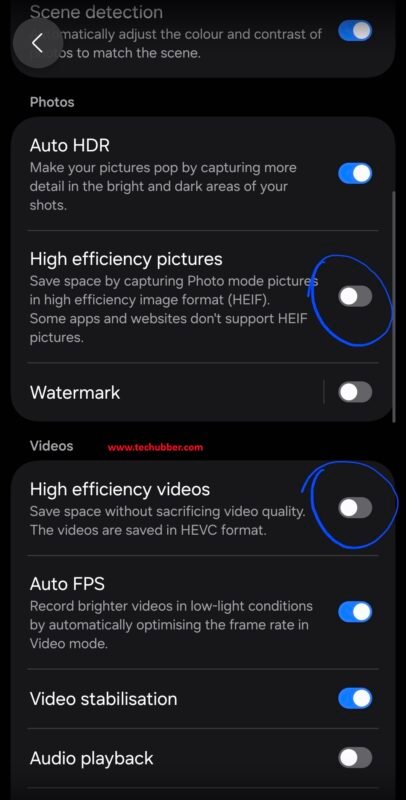
Note: Some Android phones do not provide an option to disable HEIC. In that case, the device may already save images as JPG, or the manufacturer has locked the format. Check your phone’s user manual or support website for model-specific instructions.
How to Disable HEIC on iPhone
If you are considering to disable HEIC on iPhone, you may follow the steps below. Apple makes it easy to switch from HEIC to JPG.
- Open Settings.
- Scroll down and tap Camera.
- Tap Formats.
- Under Camera Capture, select Most Compatible.
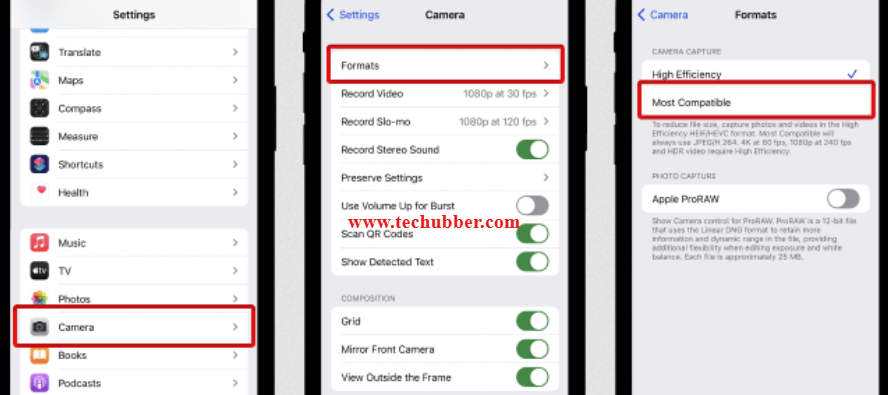
Your iPhone will now save new photos in JPG format instead of HEIC.
Existing HEIC Photos
Changing the camera setting only affects future photos. Existing HEIC images on your phone will remain in HEIC format. If you need them as JPG files, you’ll have to convert them using your phone, a computer, or an image conversion tool.
Conclusion
HEIC is a modern image format that delivers excellent image quality while using significantly less storage space than JPG. For many users, these benefits make it an excellent choice for everyday photography.
However, if you frequently transfer photos to a Windows PC, upload images to websites, or share them with people using older devices, saving photos as JPG can help avoid compatibility issues and eliminate the need for file conversions.
If you prefer to keep using HEIC because of its superior compression and image quality, there’s no need to disable it. Instead, you can simply convert your HEIC photos to JPG whenever needed on your PC. Check out our guides on how to view HEIC images in Windows Photos app and how to batch convert HEIC images to JPG on Windows 11 to learn how to work with HEIC files while still enjoying their storage-saving advantages.
# view HEIC images Windows 11
# open HEIC in Photos app
# disable HEIC on iPhone
# disable HEIC on Android Phone
# Windows Photos can’t open HEIC
# How to Batch Convert HEIC Images to JPG on Windows 11
# How to Disable HEIC Image Format on Your Phone
Leave a Comment (FB)