10 Gmail Tips and Tricks That Will Save You Hours Every Week – that’s right!
Email is an essential part of our daily lives, but managing an overflowing inbox can quickly become overwhelming. Whether you’re a student, professional, business owner, or simply someone who receives dozens of emails every day, learning a few smart Gmail features can significantly improve your productivity. In this article, we’ll explore 10 practical Gmail Tips and Tricks that can help you save time, stay organized, and make your inbox work for you instead of against you.
Table of Contents
1. Schedule Send – Gmail Send Later
Effective communication is also all about good timing, right?
Have you ever written an email at night but wanted it to send out during office hours? Or you want to draft an email before you forget? Gmail’s Schedule Send feature lets you compose an email and choose exactly when it should be delivered.
Simply click the arrow next to the Send button and select Schedule Send. The set the date and time when the email should be send. This is one of the most useful Gmail Tips and Tricks for professionals who communicate across different time zones.
2. Gmail Keyboard Shortcuts
If you spend a lot of time in Gmail, keyboard shortcuts can dramatically speed up your workflow.
Some helpful shortcuts include:
- C = Compose new email
- E = Archive email
- R = Reply
- / = Search mail
How to enable Gmail Keyboard Shortcuts: Enable them by going to Settings > See All Settings > General > Keyboard Shortcuts.
These Gmail Tips and Tricks may seem small, but they can save minutes every day.
3. Master Gmail Search Operators
Most people use Gmail search like they use Google, but Gmail offers powerful search operators that make finding emails much easier. For example:
- from:john@example.com
- has:attachment
- older_than:1y
- label:important
Learning these Gmail Tips and Tricks can help you locate emails in seconds instead of scrolling endlessly through your inbox.
4. Create Gmail Filters for Automatic Organization
Filters allow Gmail to automatically sort incoming emails based on rules you create. For example, newsletters can go directly into a specific folder, while important client emails can be marked as priority.
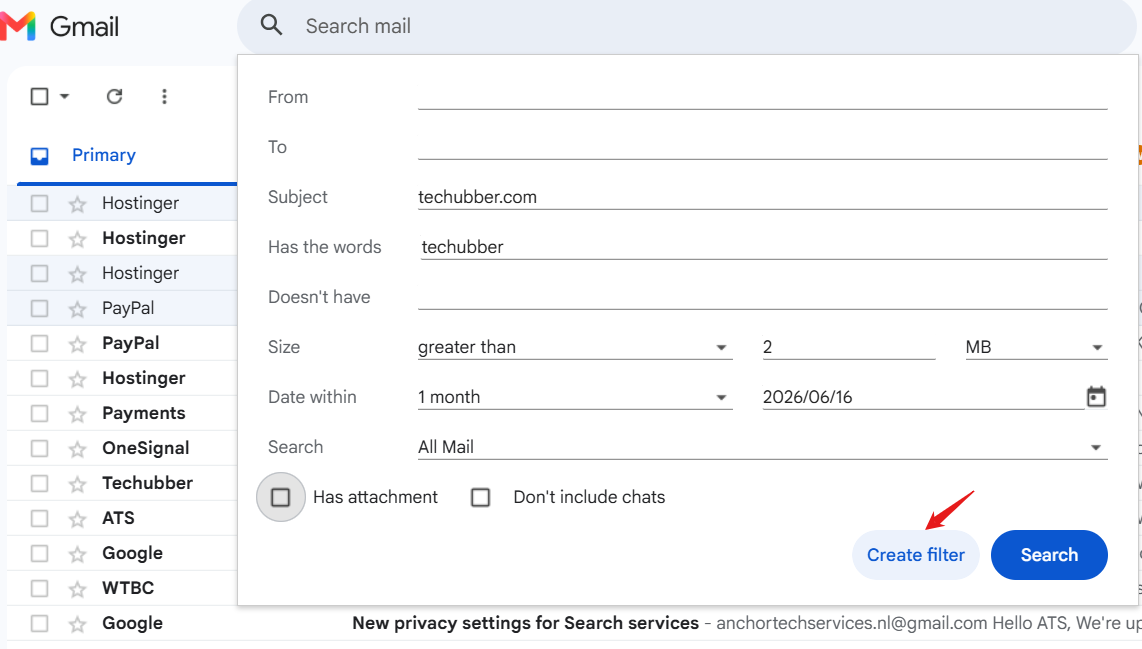
Steps to create filter in Gmail :
- Click on the settings in the Gmail search bar, and define your criteria
- Enter one or more filter criteria, such as:
- From: Specific sender email address
- To: Recipient address
- Subject: Specific words in the subject line
- Has the words: Keywords in the email body
- Doesn’t have: Exclude specific words
- Has attachment: Only emails with attachments
- Size: Emails larger than a certain size
- Click Create filter.
- Choose the action(s) you want Gmail to perform:
- Skip the Inbox (Archive it), Mark as read, Star it, Apply a label, Forward it, Delete it, Never send it to Spam etc.
- (Optional) Check Also apply filter to matching conversations to apply the rule to existing emails.
- Finally click on create filter.
Once set up, Gmail handles the organization for you.
5. Snooze Emails Until You Need Them
Not every email requires immediate action. Instead of letting it clutter your inbox, use the Snooze feature. Hover over an email and click the clock icon to make it disappear temporarily and return at a time you choose.
Among all Gmail Tips and Tricks, this is one of the best for maintaining a clean inbox while ensuring important tasks don’t get forgotten.
6. Use Multiple Gmail Signatures
If you communicate with different audiences, Gmail allows you to create multiple email signatures. This is particularly useful for professionals who manage multiple roles, projects, or organizations, as each signature can contain different contact details, job titles, disclaimers, or branding elements.
For example, you might have:
- A personal signature
- A professional work signature
- A project-specific signature
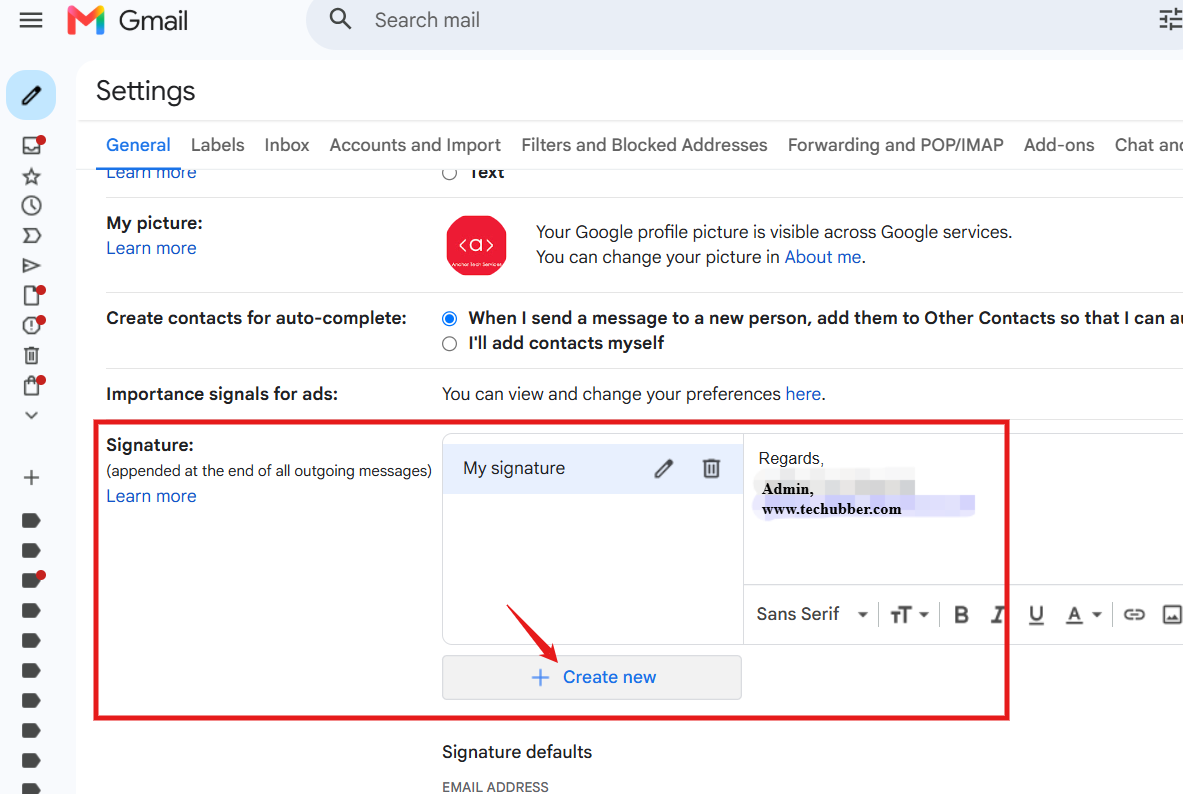
How to create signature in Gmail:
- Click the Gmail Settings (gear) icon in Gmail and select See all settings.
- Under the General tab, scroll down to the Signature section and click Create new.
- Enter a name for the signature and design it as desired.
- Repeat the process to create additional signatures for different purposes, such as work correspondence, project communications, or personal emails.
Once multiple signatures have been created, you can assign default signatures for new emails and replies/forwards using the dropdown menus in the Signature section.
When composing an email, you can also switch signatures manually by clicking the Insert Signature icon (pen icon) at the bottom of the compose window and selecting the appropriate signature.
This flexibility helps maintain professional and consistent communication across different audiences and contexts. This saves time and ensures consistency in your communications.
7. Turn Emails into Tasks
Gmail integrates seamlessly with Google Tasks.
When you receive an email requiring action, right-click on the email, and select Add to Tasks option. Gmail automatically creates a task with a link back to the original email. You can set date and time for reminders etc.
These Gmail Tips and Tricks are especially useful for people managing multiple projects and deadlines.
8. Use Gmail Templates for Repetitive Emails
Do you frequently send similar responses? Enable Templates under Gmail settings and save commonly used messages. The next time you need them, simply insert the template instead of typing everything from scratch.
How to enable Gmail Templates for Repetitive Emails
- Click the Gmail Settings (gear) icon and select See all settings.
- Navigate to the Advanced tab, find Templates, and click Enable.
- Scroll to the bottom of the page and select Save Changes.
Once enabled, compose a new email and draft the message you want to reuse. Click the More options menu (three dots) at the bottom of the compose window, choose Templates, then select Save draft as template followed by Save as new template.
Customer support teams, administrators, and managers can save hours every week using this feature.
9. Enable Undo Send in Gmail
We’ve all experienced the panic of sending an email too quickly. Gmail’s Undo Send feature gives you a short window to cancel an email after clicking Send.
Once enabled, Gmail displays an Undo option immediately after an email is sent. Clicking this option within the selected time frame recalls the email and reopens it in draft mode for editing. Although simple, Undo Send is one of Gmail’s most valuable productivity and error-prevention features, offering peace of mind before a message reaches its recipient.
How to enable Undo Send in Gmail :
- Click on the Gmail Settings (gear) icon in Gmail and select See all settings.
- Under the General tab, locate the Undo Send section and choose a cancellation period of 5, 10, 20, or 30 seconds.
- Click Save Changes at the bottom of the page to apply the new setting.
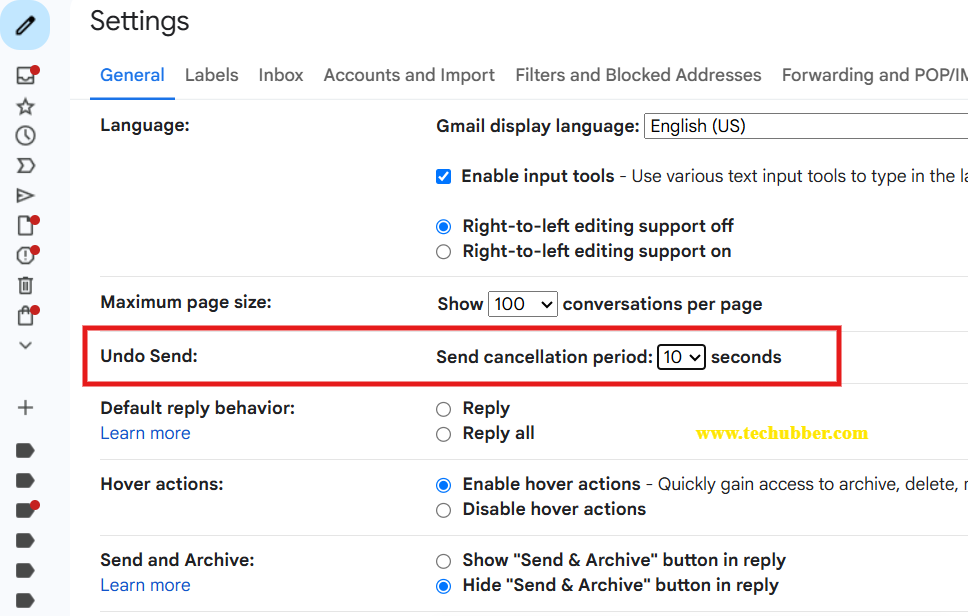
It’s one of those Gmail Tips and Tricks you’ll be grateful for the first time you catch a mistake.
10. Archive Instead of Deleting
Many users delete emails to keep their inbox clean, but archiving is often a better option. Archived emails disappear from your inbox while remaining searchable whenever you need them. This helps maintain a clutter-free inbox without risking the loss of important information.
It’s a simple habit that can make email management much more efficient.
Bonus: Use quick email filter in Gmail
A quick and convenient way to find all emails from a particular sender in Gmail is by using the quick filter – “Find emails from” option. Instead of manually entering search operators in the search bar, simply right-click an email in your inbox and select Find emails from XYZ. Gmail will instantly display all messages received from that sender, making it easy to locate past conversations, attachments, or important information.
The Find emails from option is one of the best Gmail Tips and Tricks helping users quickly find emails by sender. It reduces time spent searching and ensures important messages can be found within seconds.
Final Thoughts
The best productivity improvements often come from small changes that save a few minutes every day. These Gmail Tips and Tricks are easy to implement, yet they can collectively save hours every week.
Start by adopting at least two or three of these techniques and gradually add more to your workflow. Before long, you’ll spend less time managing your inbox and more time focusing on meaningful work.
Mastering these Gmail Tips and Tricks isn’t about becoming an email expert—it’s about making Gmail work smarter so you can do more. If you need more help, refer to Gmail Help articles here.

Leave a Comment (FB)