Have you ever transferred photos from your smartphone to a Windows 11 PC only to discover that they won’t open in the Photos app? If your images have the .HEIC file extension, you’re not alone. Many modern smartphones, including iPhones and some Android devices, save photos in the HEIC format by default, which Windows cannot fully display without the required extensions.
In this guide, we’ll see why HEIC images don’t open in Windows Photos and how to install the necessary components to view HEIC images in Windows Photos App.
Table of Contents
What Is a HEIC Image?
HEIC (High Efficiency Image Container) is an image format based on the HEIF (High Efficiency Image File) standard. It uses advanced compression technology to store high-quality images in smaller file sizes than traditional JPG images.
Because of its excellent balance between image quality and storage efficiency, HEIC has become the default photo format on iPhones and is also supported by many Android smartphones.
HEIC Images Not Opening in Windows?
A clean installation of Windows 11 does not include all the codecs required to decode HEIC images. When you try to open a HEIC file, the Photos app may display an error similar to:
20240210_104847.heic
The HEVC Video Extension is required to display this file. Download and install it now.

This happens because HEIC images are stored using HEVC (High Efficiency Video Coding) compression. While Windows recognizes the HEIF file format, it also requires the HEVC codec before it can display the image correctly.
If you frequently transfer photos to a Windows PC, you may also disable HEIC image format on your phone and start saving future photos as JPG instead of HEIC. Although JPG files are larger, they are supported by virtually every computer, website, printer, and photo editing application.
Otherwise, the solution to view HEIC images in Windows Photos App is simple.
Install the Required Extensions to View HEIC Images in Windows Photos App
To view HEIC images in the Windows Photos app, install the following two extensions from the Microsoft Store.
1. HEIF Image Extensions (Free)
The HEIF Image Extensions package enables Windows to read and write files that use the High Efficiency Image File (HEIF) format.
Without this extension, Windows cannot properly recognize HEIF-based image files.
Install HEIF Image Extensions from Microsoft App Store
2. HEVC Video Extensions (Paid)
The HEVC Video Extensions package provides the codec needed to decode HEIC images.
Although HEIC is an image format, it relies on HEVC compression technology. This extension is typically available for a small one-time fee (around $0.50, depending on your region).
Install HEVC Video Extensions from Microsoft App Store
How to Install the Extensions
Follow these steps:
- Open the Microsoft Store.
- Search for HEIF Image Extensions.
- Click Install (this extension is free).
- Return to the Microsoft Store.
- Search for HEVC Video Extensions.
- Purchase and install the extension.
- Restart the Photos app if it is already open.
Once both extensions are installed, Windows will be able to display HEIC images just like JPG or PNG files.
Verify That It Works
After installing the extensions:
- Double-click a HEIC image.
- The image should now open normally in the Photos app.
- File Explorer should also display image thumbnails instead of generic icons.
- You can also convert HEIC image to other formats such as JPG / PNG by clicking on the three dots (…) and selecting ‘Save As’.
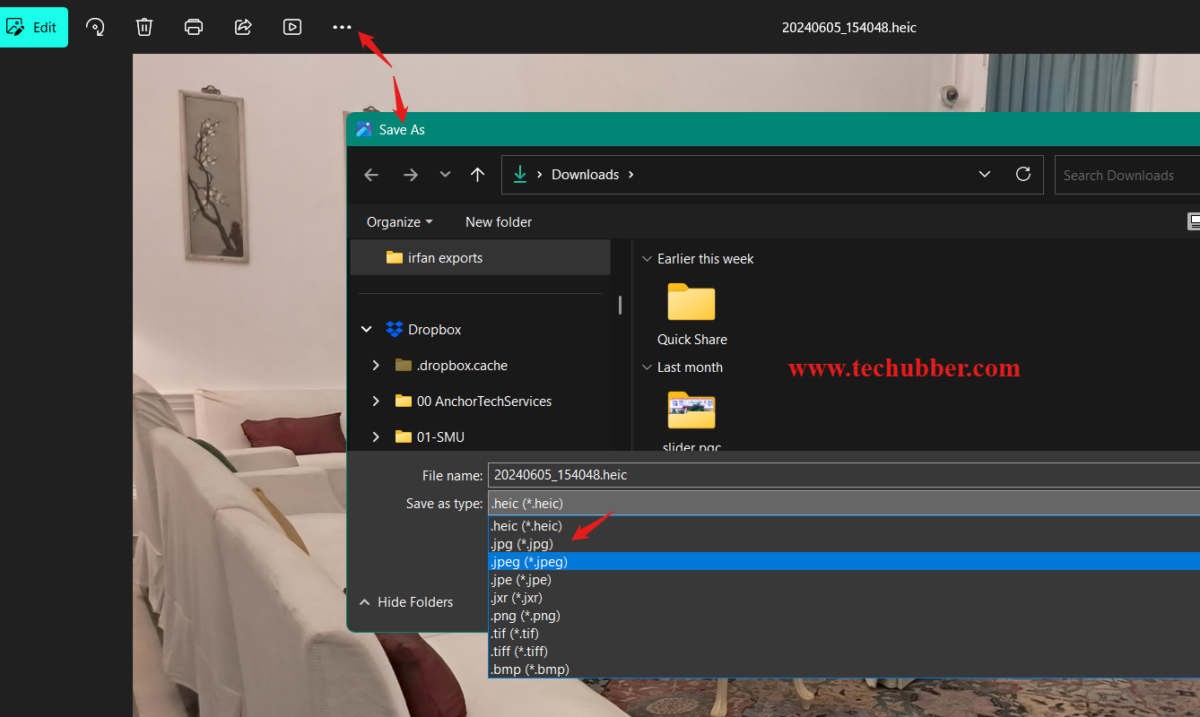
If the image still doesn’t open, try restarting your computer or checking that both extensions were installed successfully.
Conclusion
HEIC is an efficient image format that delivers excellent quality while saving storage space, but Windows requires additional components before it can display these images. By installing the free HEIF Image Extensions and the HEVC Video Extensions, you can view HEIC images directly in the Windows Photos app without any extra steps.
If you frequently work with photos from an iPhone or Android device, keeping these extensions installed will provide a smoother experience. And if you need to convert large numbers of HEIC files into JPG, be sure to read our guide on How to Batch Convert HEIC Images to JPG on Windows 11, where we show you how to convert hundreds of images at once using IrfanView.
# view HEIC images Windows 11
# open HEIC in Photos app
# Windows Photos can’t open HEIC
# How to Batch Convert HEIC Images to JPG on Windows 11
# How to Disable HEIC Image Format on Your Phone
Leave a Comment (FB)