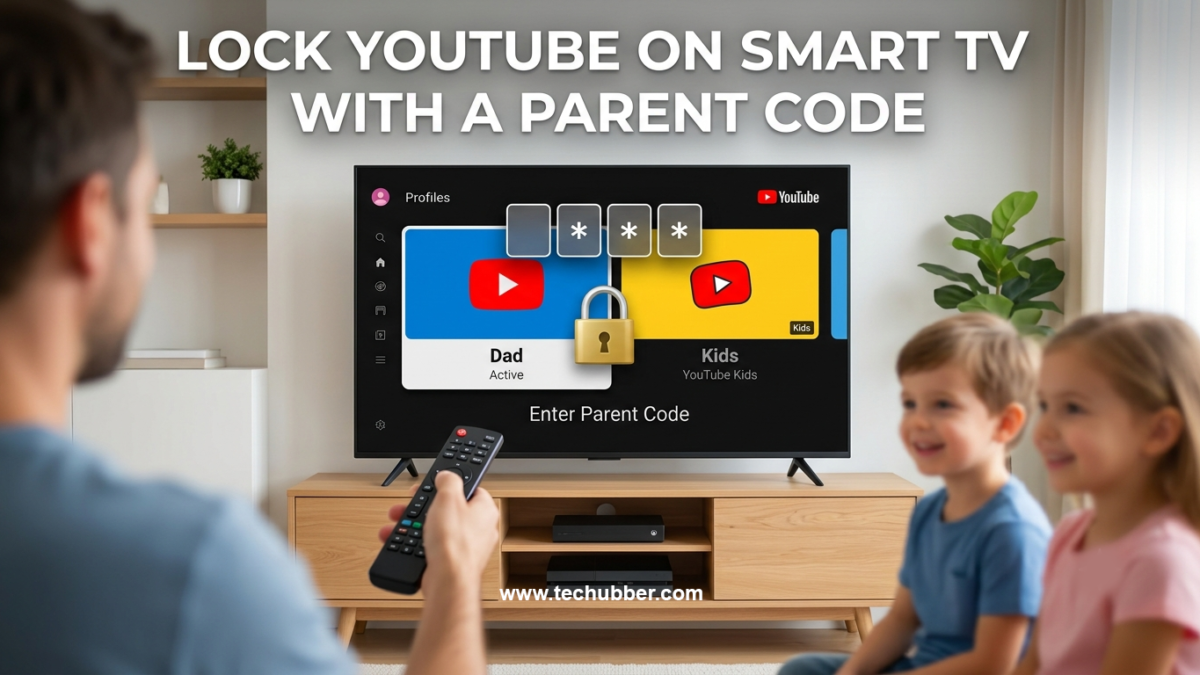
Living in an age of endless digital streaming makes keeping young viewers safe on big screens a top priority for parents. While YouTube contains a vast array of educational content, cartoons, and family entertainment, it also hosts millions of videos intended strictly for older audiences. This step-by-step guide on how to lock YouTube on Smart TV will help you keep your kids away from unsafe content.
If you share a Smart TV across your household, younger family members can easily switch away from YouTube Kids or accidentally access adult profiles and signed-out guest accounts. Fortunately, YouTube introduced family profile switching and a dedicated Parent Code feature specifically designed for TV interfaces. This step-by-step guide walks you through setting up family profiles, securing your YouTube app, and optimizing parental controls on your Smart TV.
Why Is Setting Up Family Profiles and a Parent Code Important?
Smart TVs present a unique challenge when managing screen time and content safety:
- Restricts Unsupervised Account Switching: Without a passcode, kids can easily navigate from their supervised profile to a parent or older sibling’s profile with a single click of the remote control.
- Locks Out Guest / Signed-Out Mode: Even if you log out of main accounts, YouTube defaults to guest browsing. A Parent Code prevents unauthorized guest browsing.
- Protects YouTube Kids Boundaries: As YouTube unifies the YouTube Kids experience inside the main TV application, creating distinct family profiles and locking adult accounts ensures children remain within their tailored profile.
- Prevents Account Removal: The Parent Code blocks unauthorized users from modifying or deleting existing household profiles on the TV device.
How to Lock YouTube on Smart TV: Step-by-Step Parent Guide
Step 1: Set Up Family & Supervised Profiles on YouTube
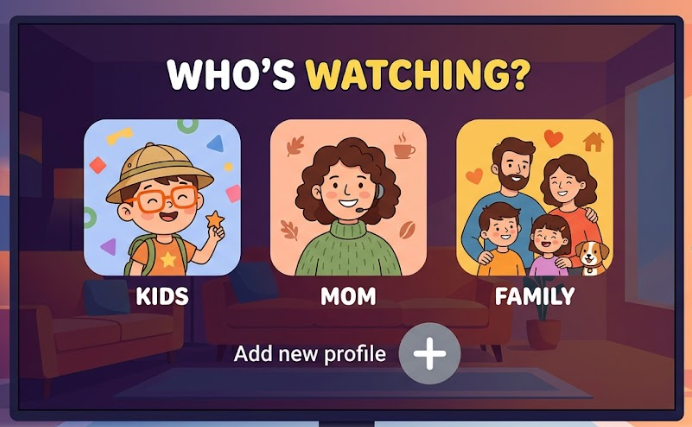
Before turning on the lock feature, you must create dedicated profiles for your kids under your parent Google Account or Google Family Group.
- Sign In to Your Parent Account: On a mobile device, computer, or directly on your TV, sign into the main parent Google account.
- Set Up YouTube Kids or Supervised Experience:
- For Younger Children (YouTube Kids): Go to youtube.com/myfamily or open the YouTube app on your phone, navigate to your profile picture, select Settings > Parental Settings, and add a YouTube Kids profile for your child.
- For Pre-Teens & Teens (Supervised Account): Select Add Child / Supervised Account to set content settings (Explore, Explore More, or Most of YouTube) suited for older kids.
- Add Profiles to the Smart TV YouTube App:
- Open YouTube on your Smart TV.
- Select Who’s watching? or click your profile icon in the top left corner.
- Select Add account or sign in with the child’s Google account/profile.
- Make sure both your parent account and all child profiles are listed on the TV profile selection screen.
Step 2: Set Up the Parent Code on Your Smart TV
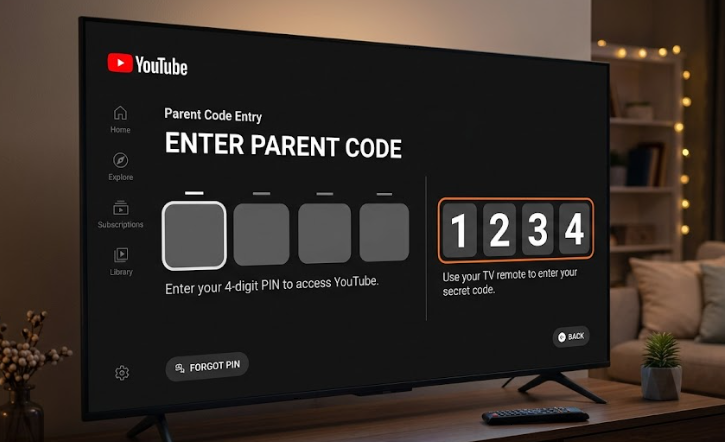
Once your family profiles are linked to the TV app, follow these steps to secure your parent account and guest access with a PIN.
- Open the YouTube App: Launch the official YouTube application on your Smart TV, streaming device, or gaming console.
- Navigate to Settings: Scroll down the left navigation panel to highlight and select the Settings gear icon.
- Select Parent Code: Scroll down the Settings menu until you locate the Parent code tab under the Parental Controls section. Select it to launch the setup wizard.
- Create Your 4-Digit Passcode: Follow the on-screen prompts to enter a secret 4-digit Parent Code. Re-enter the code when prompted to confirm it.
- Test and Confirm Lock Status: Try switching profiles from a child profile back to your parent account or guest mode. The app will now prompt you to input your 4-digit code before granting access.
Additional Parental Control Tips for Smart TVs
While the Parent Code is a powerful tool, combining it with other built-in features gives you total control over family entertainment:
- Enable Restricted Mode: Inside YouTube Settings on your TV, toggle Restricted Mode ON. This leverages YouTube’s automated algorithms to filter out potentially mature content.
- Lock Apps at the TV System Level: Many Smart TV platforms (like Samsung Tizen, LG webOS, or Android/Google TV) allow you to place a system-wide PIN code on specific apps directly in the TV’s main settings menu.
- Use YouTube Family Center: Pair your parent account with your child’s account on mobile or web to set daily watch limits, pause watch history, or restrict Shorts scrolling.
Frequently Asked Questions
Is the Parent Code the same as my Google Password?
No. The Parent Code is a standalone 4-digit PIN specific to your TV’s YouTube app interface. It cannot be used to verify your Google Account or make purchases online.
How do I turn off or reset the Parent Code?
Go back to Settings > Parent code in the YouTube app. To disable it, select Off and enter your existing code. If you forget your code, you will need to sign out of the YouTube app on your TV and reconnect your account.