Do you enjoy both Light and Dark Mode in Windows 11, but switch manually? Why not automate? In this post I will show you How to automatically switch dark mode in Windows 11 using Microsoft PowerToys.
If you love the clean look of Light Mode during the day but prefer the comfort of Dark Mode at night, you’re not alone. Many Windows users switch between the two modes depending on the time of day and their working environment. But manually switching between dark mode and light mode can become tedious. The good news is that you can Schedule Dark Mode in Windows 11 and automatically switch Dark Mode using Microsoft PowerToys.
Once configured, your Windows 11 device will seamlessly adapt throughout the day, giving you the perfect balance between productivity and comfort. This simple automation improves comfort, reduces eye strain, and creates a more personalized Windows experience. In this guide, you’ll learn how to Schedule Dark Mode in Windows 11 with PowerToys
Table of Contents
Light Mode and Dark Mode benefits
Both light and dark mode offer unique benefits:
Light Mode
– Easier to read in bright environments
– Provides strong contrast for documents and web pages
– Familiar appearance similar to printed materials
Dark Mode
– More comfortable in low-light conditions
– Reduces screen glare during night time use
– Can help reduce eye fatigue during extended computer sessions
– May improve battery life on devices
If you prefer to use light mode during the day and dark mode in low light conditions at night then you can automatically switch dark mode in Windows 11 using PowerToys. By automatically switching between these modes, you can enjoy the best of both worlds without lifting a finger.
How to Enable Light Mode or Dark Mode Manually in Windows 11
Before we learn how to setup auto switching dark mode, let’s review how to change themes manually.
Step 1: Open Windows Settings: Right click on the Windows Start icon and select Settings
Step 2: Select Personalization from the left sidebar.
Step 3: Click on Colors
Step 4: Choose Your Mode:
Under Choose your mode, select: Light for Light Mode, Dark for Dark Mode, Custom to mix Windows and app themes
The change takes effect immediately.
How to automatically switch dark mode in Windows 11 using PowerToys
What Is Microsoft PowerToys?
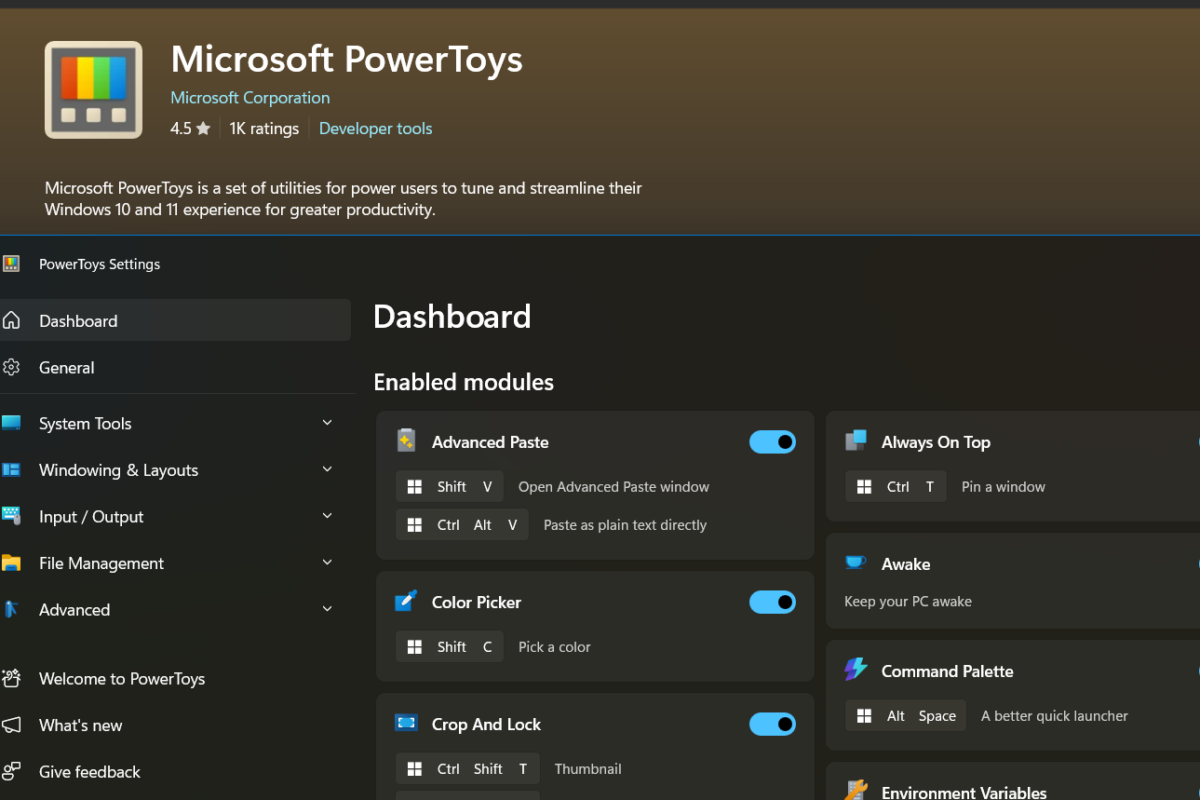
Microsoft PowerToys is a collection of advanced utilities designed to enhance the Windows experience. It includes tools for window management, keyboard customization, file renaming, image resizing, and much more. One of its useful features is the ability to automate system behaviors, making it an excellent solution for users who want to schedule theme changes automatically.
How to Install Microsoft PowerToys
Microsoft PowerToys is not preinstalled in Windows 11. So, you’ll have to get it from Microsoft Store. The steps to download and install Microsoft PowerToys is easy and straight forward.
Step 1: Open Microsoft Store app on your Windows 11 computer
Step 2: Search for Microsoft PowerToys
Step 3: Click on Get
Once it is installed, click Open.
How to Schedule Dark Mode in Windows 11 using PowerToys
To schedule Dark Mode in Windows 11 automatically, all you need to do is to install PowerToys from Microsoft Store, and configure it in Microsoft PowerToys.
Step 1: Open PowerToys- Launch the PowerToys application from the Start Menu.
Step 2: Look for “System Tools” in the left sidebar > click on “Light Switch” under the System Tools.
Step 3: Enable Light Switch (toggle)
Step 4: Click on the “Mode” drop down. Options: Off, Fixed Hours, Sunset to Sunrise
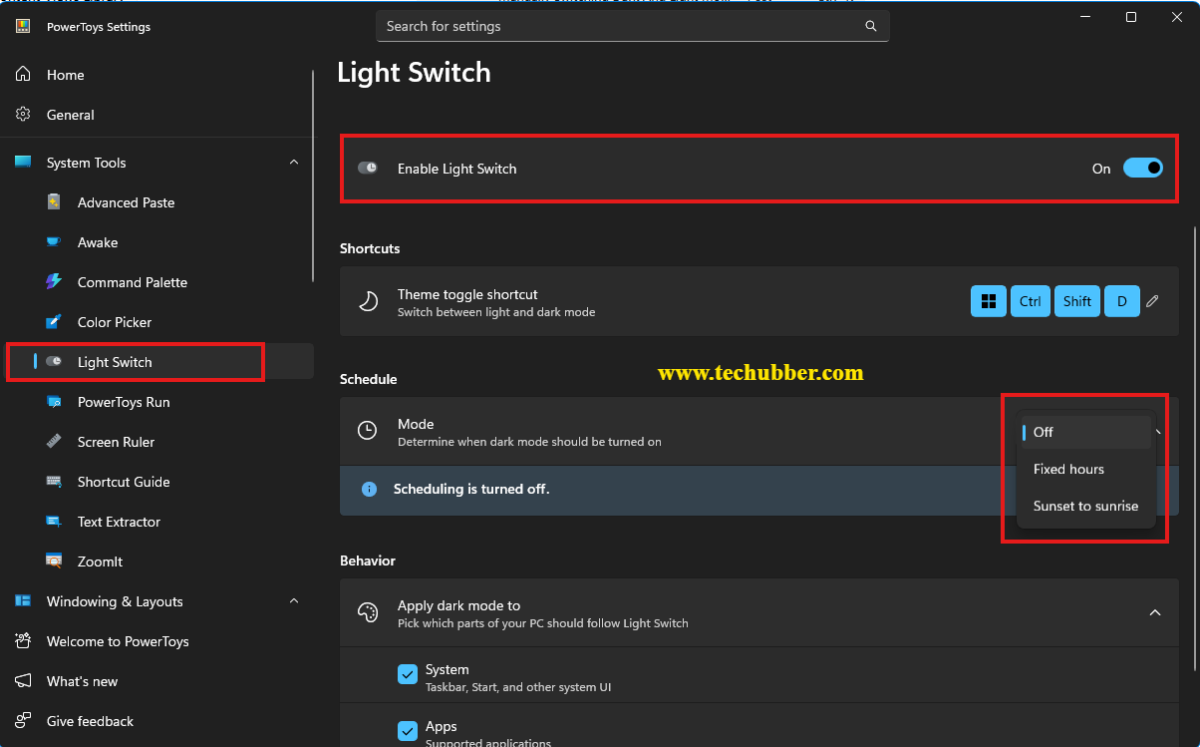
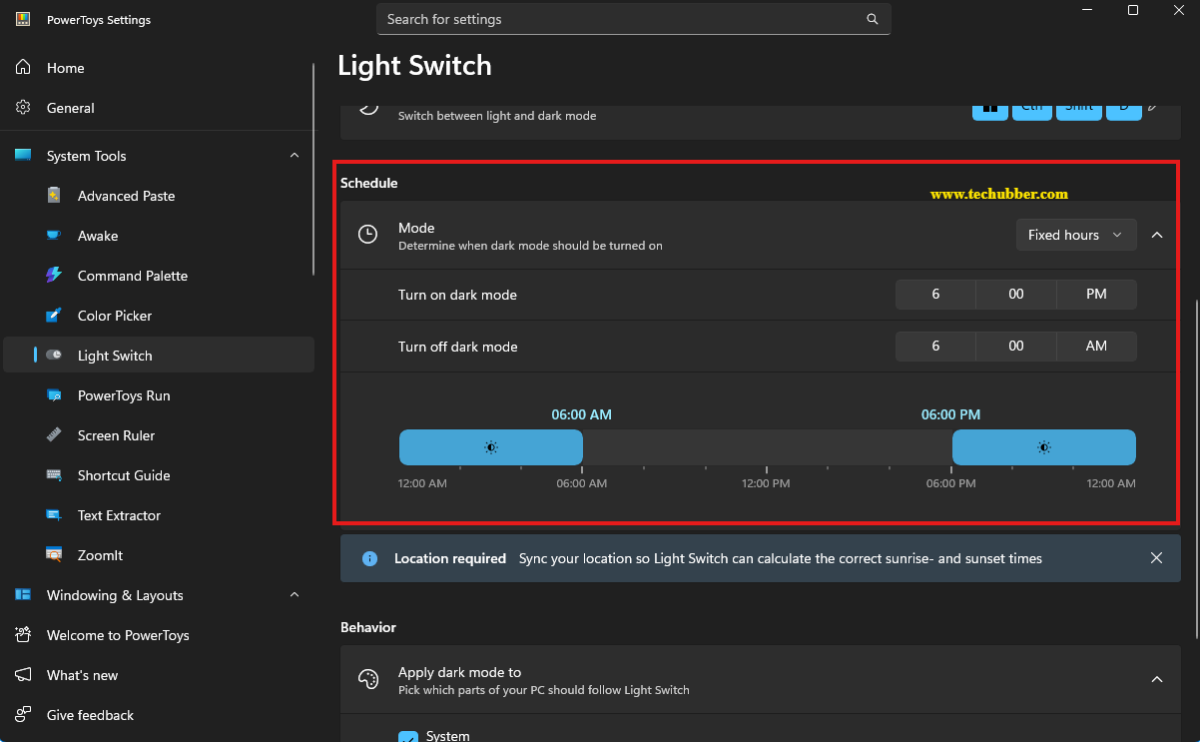
Mode Option Selected: Fixed Hours
Choose this option to manually set the turn on and turn off time.
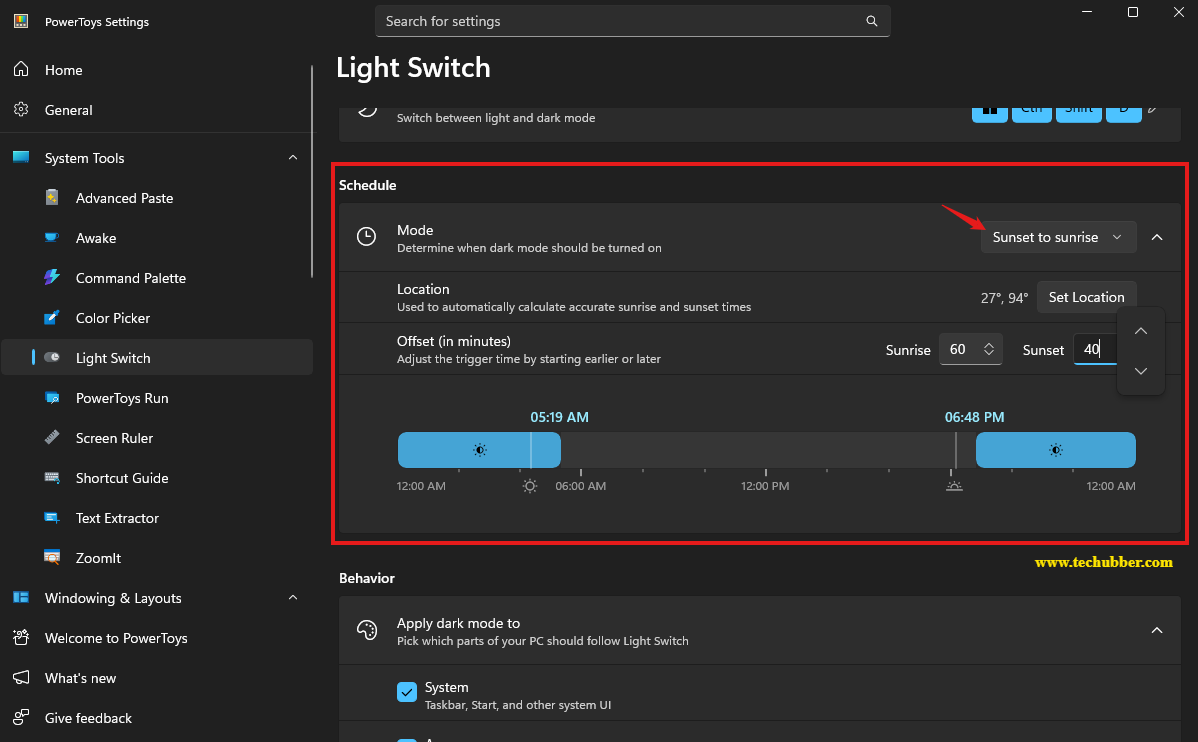
Mode Option Selected: Sunset to Sunrise
Choose this option to auto schedule dark mode and light mode by sunrise and sunset time as per your location.
If you selected Sunset to Sunrise option, then you need to Set Location as well.
- Click on set location > enter Latitude and Longitude, or click on Detect Location – in this case, the sunrise and sunset time is automatically set.
- You can also change the timing slightly by entering an offset.
Step 5: Under Behavior, you can select where the dark mode applies to – System / Apps.
That’s it.
You have successfully schedule Dark Mode in Windows 11 automatically using Microsoft PowerToys. As per your settings, dark mode will be enabled and disabled automatically.
Best Schedule for Most Users
While personal preference varies, many users find this schedule comfortable:
Light Mode 6:00 AM – 6:00 PM
Dark Mode 6:00 PM – 6:00 AM
You can adjust the schedule based on your work hours, local sunrise and sunset times, or personal comfort.
By leveraging PowerToys, Windows 11 users can configure switching between light and dark mode automatically as per the defined hours. Incorporating scheduled dark and light modes into one’s daily routine is a simple yet effective way to enhance personal computing, making the experience more enjoyable and less straining on the eyes.
#Dark Mode in Windows 11 # Automatically turn on dark mode in Windows 11 # Schedule dark mode # Microsoft PowerToys

Leave a Comment (FB)